To reset your password in ODESA 2, click the “Reset password” option on the login screen. The email address and password boxes can be left blank.
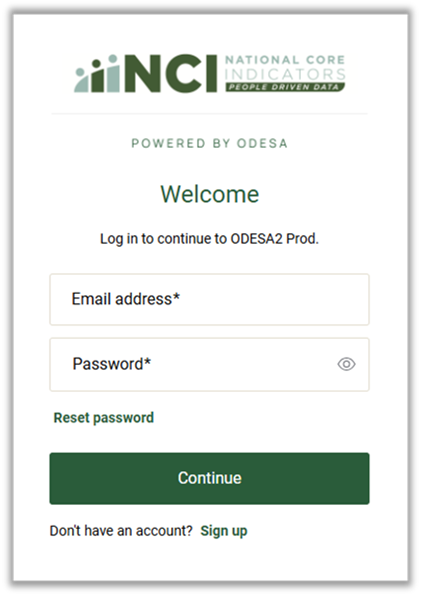
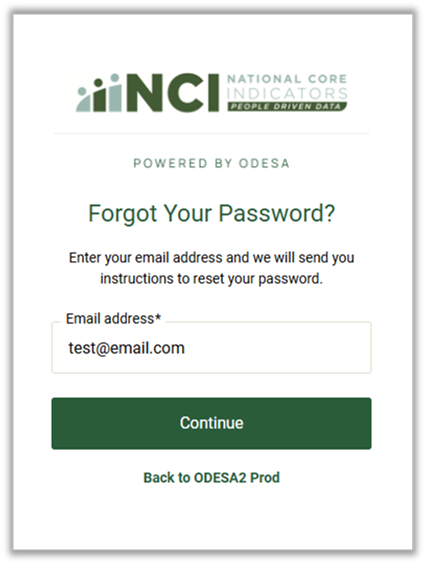
In the next screen, enter your email address and select “Continue”.
The following screen will appear and an email will be sent to the address provided.
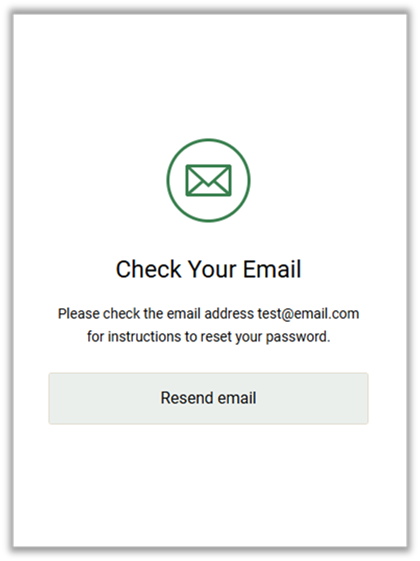
If you do not receive an email, first check your junk/spam folder(s) to ensure the email did not end up in there. If you confirm you did not receive the email, select “Resend email”, which will return you to the previous screen. Verify your email address is correct and select “Continue” again.
If after performing these steps you still do not receive the email, please reach out to your state contact to ensure your account has been created. If they are not available to help, you may contact OdesaSupport@hsri.org for assistance.
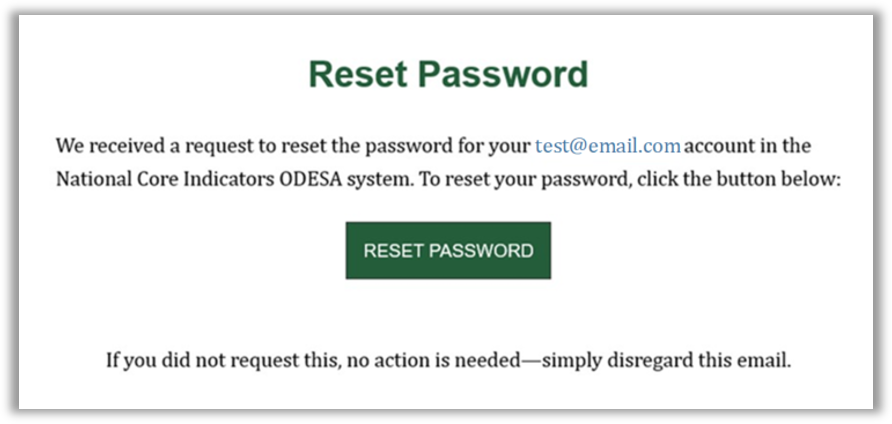
The password reset email will appear in the format below. Select “RESET PASSWORD” to continue resetting your password.
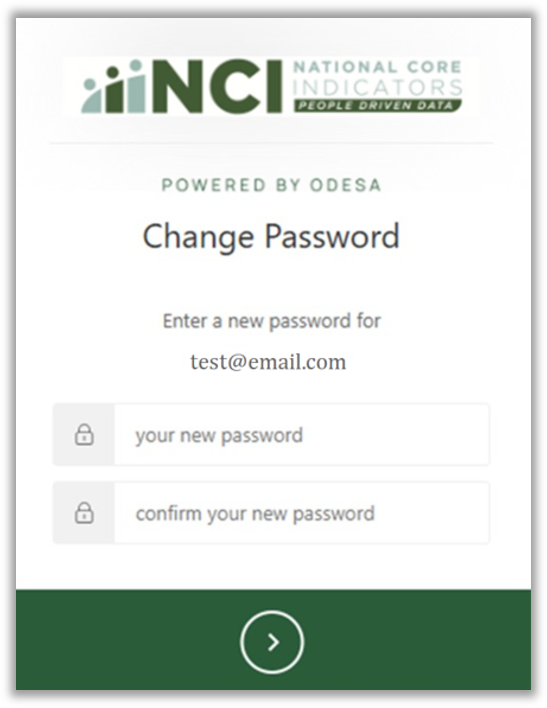
A browser window will open and display the screen where a new password can be set.
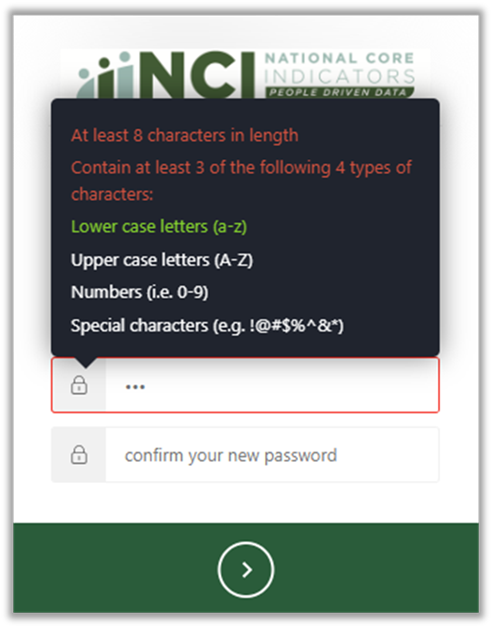
Your new password will need to follow the same requirements as when you first created a password. These will appear as soon as you start typing in your new password, as shown below.
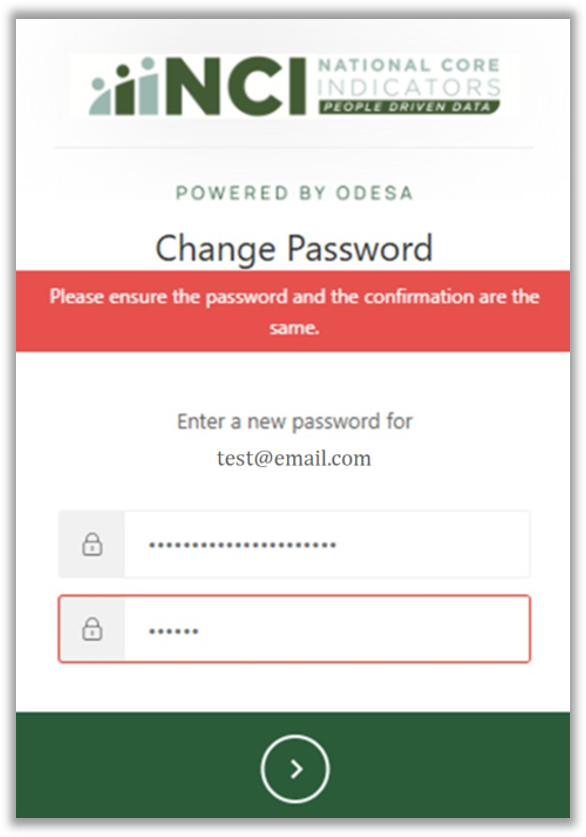
If the passwords in the two boxes do not match, the message shown below will display when you attempt to finalize the password reset.
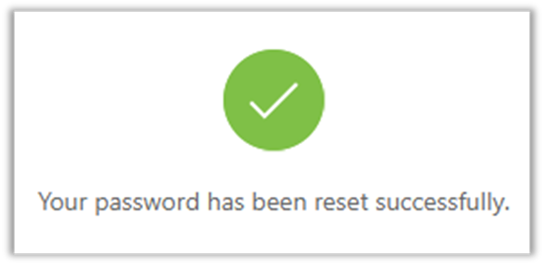
Once you have entered your new password in both boxes and ensured it meets the password requirements, click on the green circle with the arrow inside. The following message should be displayed.
You will need to reload ODESA 2 in your browser and enter your new password to log in.
Was this article helpful?
That’s Great!
Thank you for your feedback
Sorry! We couldn't be helpful
Thank you for your feedback
Feedback sent
We appreciate your effort and will try to fix the article